Open the Deployment Tool
To deploy an FMX application you need to configure the deployment settings for your project.
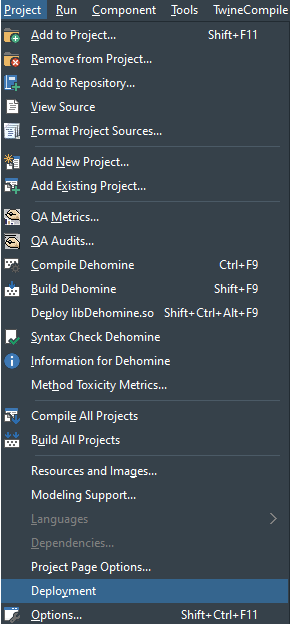
You can launch the deployment tool from the project menu:
Configure the Deployment
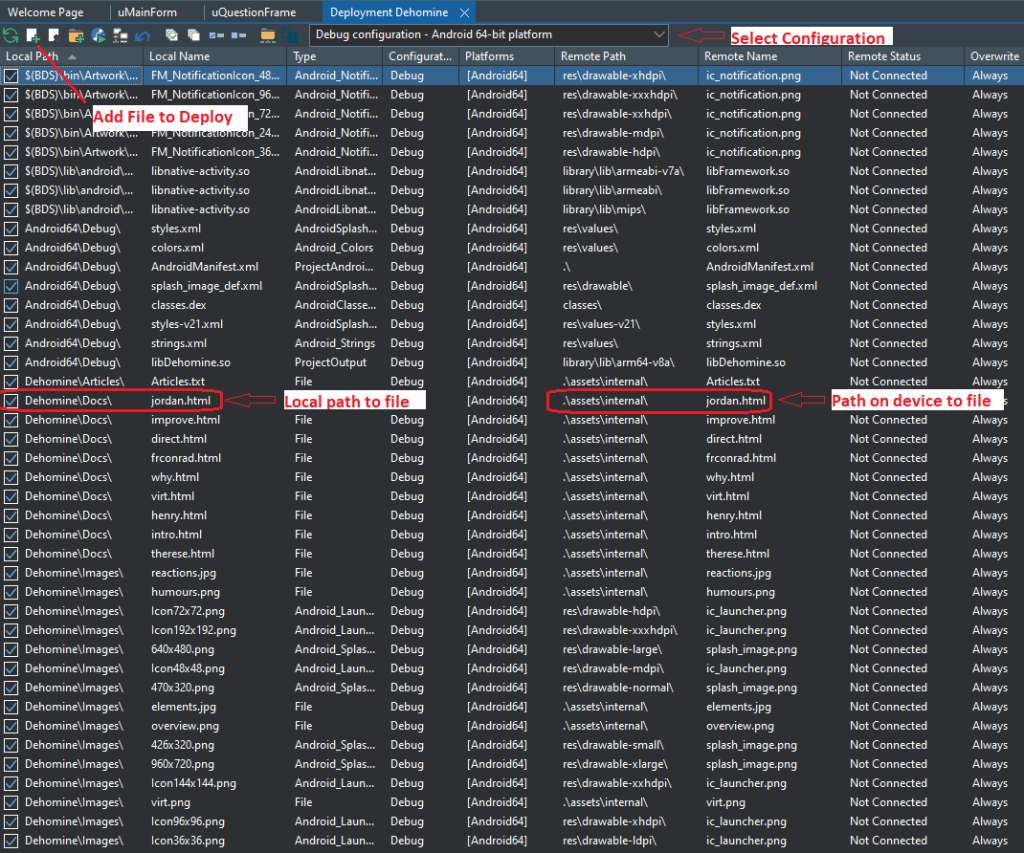
First select a configuration setting, for example Debug configuration - Android 64-bit platform.
Next, click the Add Files toolbar button to select the assets you would like to deploy.
Once the dialog closes, ensure the files you want to deploy are checked.
You can now configurate their remote paths. For Android, you will typically set the paths to .\assets\internal\ which allows you to access the file at runtime in the application's Documents folder:
class function TFiles.GetPath(const aFilename: string); string;
begin
    Result := TPath.Combine(TPath.GetDocumentsPath, aFilename);
end;
In this example a project is being configured for an Android deployment:
Changes Not Deployed
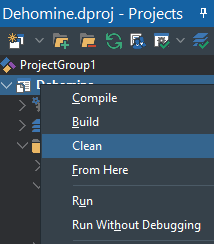
Occasionally, if you add a new file, or update an existing file, the changes may not be deployed. This is often due to caching. The solution is to Clean the project:
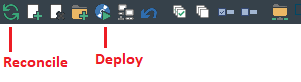
Build the project, click the green Reconcile button, then the Deploy button:
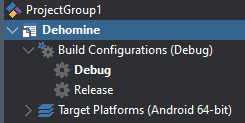
Next, make sure you have the correct configuration selected in the project explorer:
On the main toolbar, select your phone, then click run:

Changes Still Not Deployed
If your changes still do not appear on the phone:
- uninstall the application from your phone
- click run from the IDE toolbar
Missing AndroidManifest
If you get a deployment or build error indicating that the AndroidManifest.Xml file can't be found, check that you haven't accidentally set its remote path incorrectly. It should be .\ as per this example:

Upgrade Issues
When upgrading a project to a new version of Delphi, or a new Android SDK, you may get build errors caused by the existing AndroidManifest.Xml.
If so, backup the AndroidManifest.Xml, delete it from the project, and rebuild. The IDE will recreate it.